User Guide for Creating and Installing the Delivr Tracking Pixel
1. Logging into the Dashboard
Go to the Delivr dashboard: https://app.cdpresolution.com/.
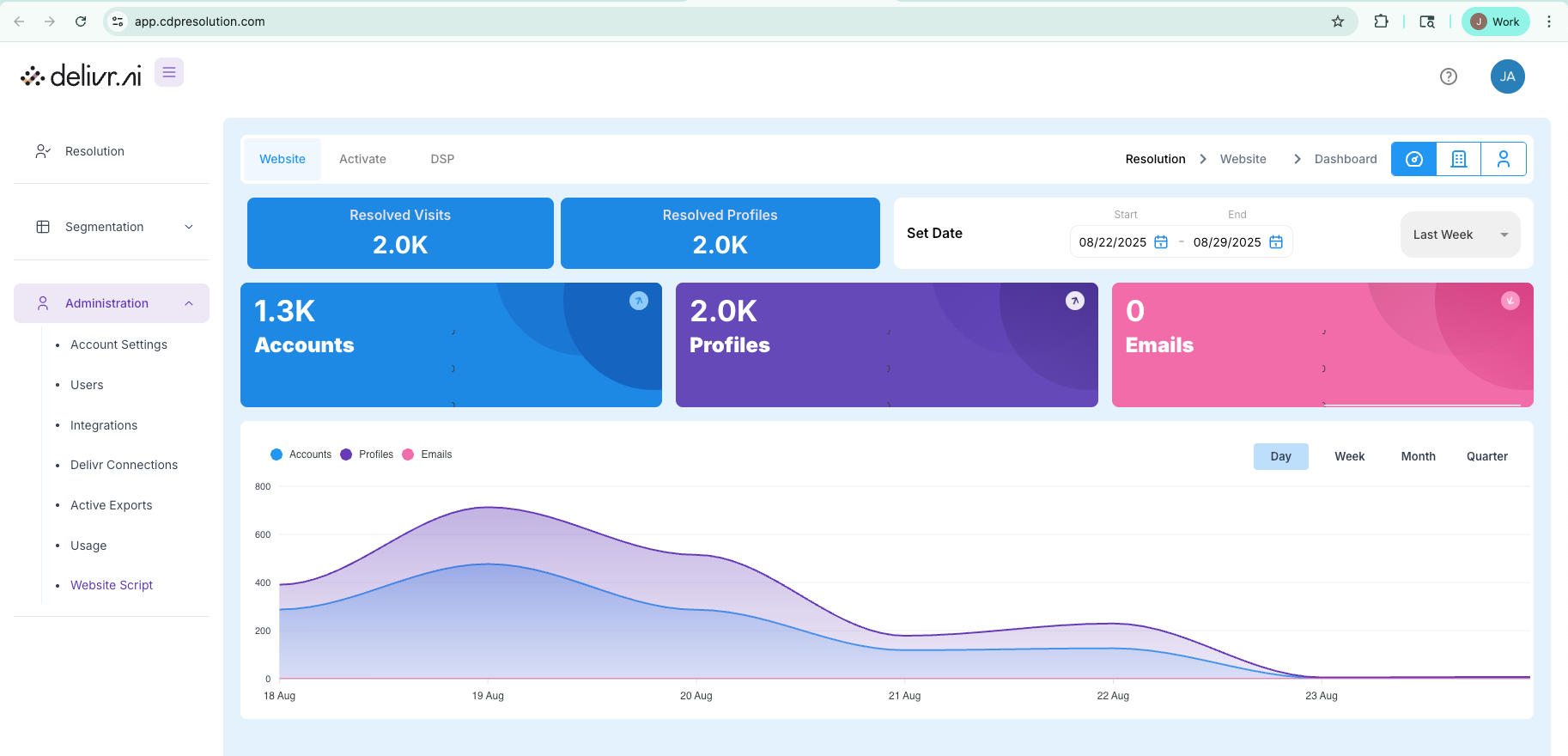
After logging in, you will land on the Dashboard, where key metrics (total visits, resolved visits, and profiles) are displayed.
In the left menu, navigate to Administration → Website Script.
2. Creating a Tracking Pixel
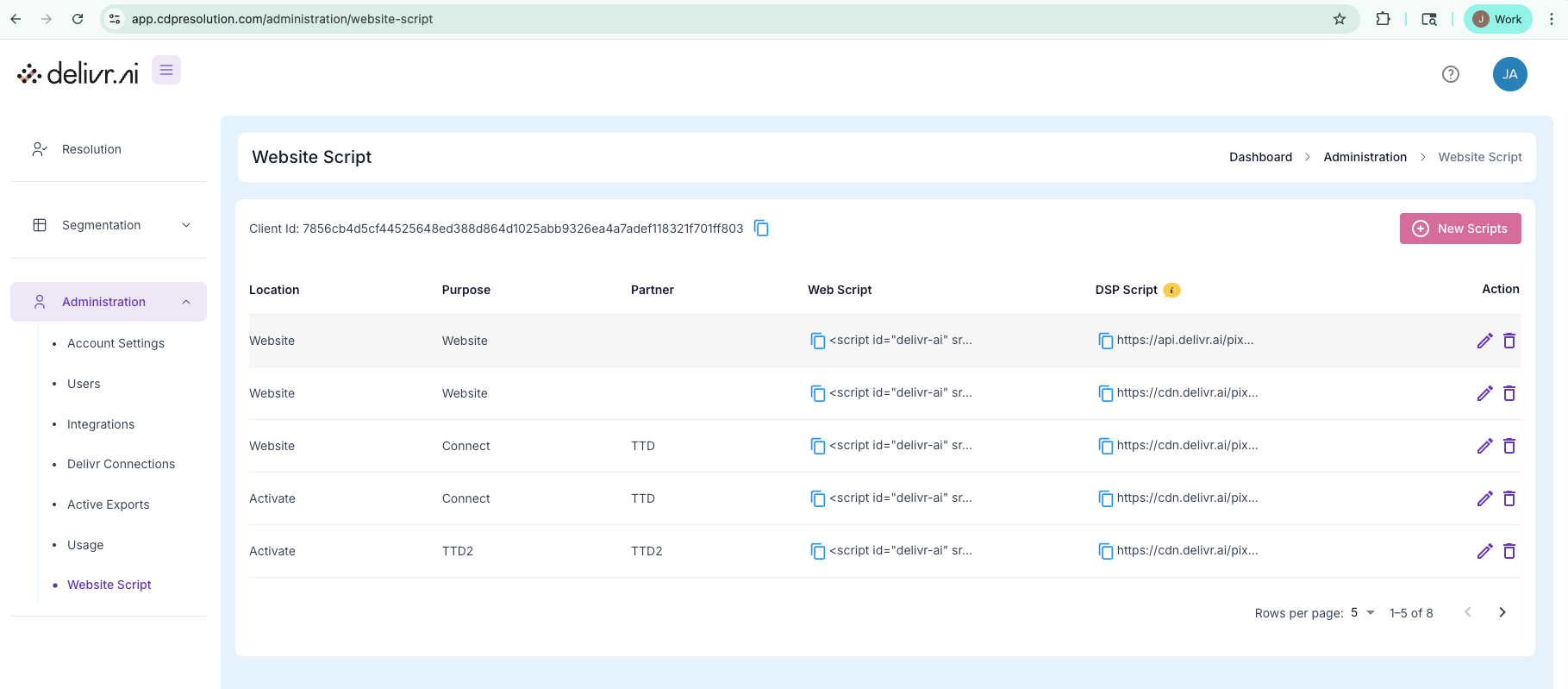
In the Website Script section, click the New Script button in the top right corner.
1. In the pop-up window, enter the pixel name and select its purpose:
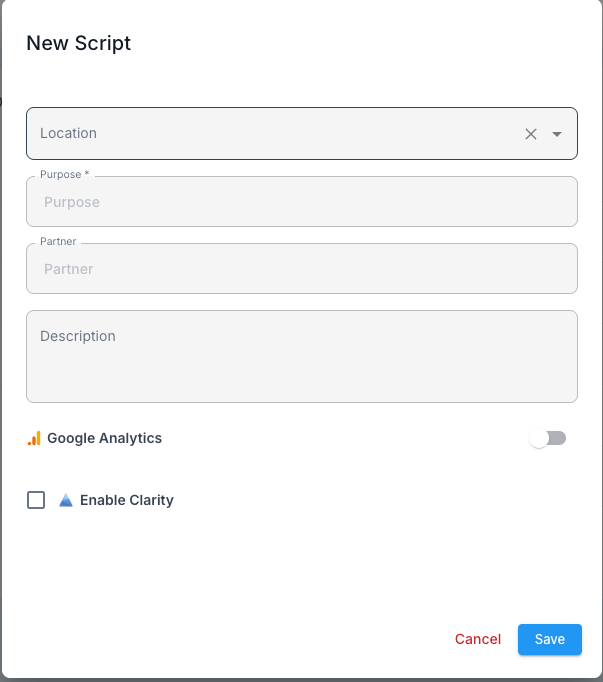
Website — if the pixel is to be installed on a website.
Activate — if the pixel will be used in advertising campaigns.
2. Specify the Purpose of the pixel. We recommend avoiding values used in previously created pixels.
3. Click Save.
3. Installing the Pixel Directly on a Website
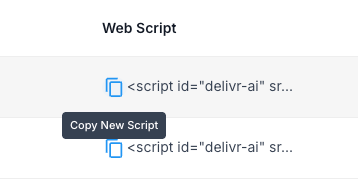
Find the newly created pixel in the list and copy the code from the New Script column.
<script id="delivr-ai" src="https://cdn.delivr.ai/pixels/81a3ef55-****-4db7-b1d8-9e5cec91****82072c66f6117*****/p.js" async></script>
Paste this code into all pages of your website before the closing </head> tag.
Save the changes and verify that the pixel is working correctly in the Delivr dashboard.
4. Installing the Pixel via Google Tag Manager (GTM)
Log in to your Google Tag Manager account.
Create a new tag of type Custom HTML.
Paste the pixel code:
<script id="delivr-ai" src="https://cdn.delivr.ai/pixels/81a3ef55-****-4db7-b1d8-9e5cec91****82072c66f6117*****/p.js" async></script>
Add the trigger All Pages so that the pixel fires on all website pages.
Save the changes and publish the GTM container.
If the container has not been installed on your website before, add it to all pages.
Use GTM Preview Mode to verify the pixel’s correct installation and confirm that data is being sent to the Delivr dashboard.
5. Verifying Pixel Functionality
After installing the pixel either directly on the site or through GTM:
Navigate to the Website Script section in the Delivr dashboard.
Ensure that data starts appearing in the system.
For additional validation, use browser developer tools (DevTools → Network → Check for p.js loading).
Once all steps are completed, the Delivr pixel will be successfully installed and begin collecting the necessary data.Simple Installation
Navigate to your website scripts.
Click on the copy icon to copy the code snippet.
Access Your Website's Code: Open the file where you want to insert the snippet. This might be an HTML file (like index.html) or a template file if you're using a web framework.
Find the Right Spot: Decide where in your HTML structure the snippet should go. Common places are within the
<body>tag for visible content or in the<head>for metadata/scripts.Paste the Snippet: Copy the HTML snippet and paste it into the chosen location in your file. Be mindful of nesting and syntax.
Save and Test: Save the file. Test it in a browser to ensure it works as expected and doesn't break anything.
Advanced Installation
Javascript Example
If you are familar with Javascript, this section demonstrates how to set up the resolution pixel with necessary parameters and advanced customization.
<script type="text/javascript">
const clientId = "insert your client id here";
//pid will always be the value below
const pid = '48a021d87720f17403d730658979d7f60e9cec91937e82072c66f611748dd47d';
// Step 2: Create the puid object // Include additional properties as needed for tracking
const puid = {
  client_id: clientId,
  purpose: 'website',// replace with your value
  partner: 'my_partner',//replace with your value
};
// Step 3: JSON stringify and encode the puid object
// This is necessary for properly formatting the URL
const encodedPuid = encodeURIComponent(JSON.stringify(puid));
// Step 4: Create the pixel URL
const pixelUrl = 'https://a.usbrowserspeed.com/cs?pid=' + pid + '&puid=' + encodedPuid;
// Step 5: Implement the pixel
// You can use an iframe or a script tag method. Here's an example using a script tag:
const script = document.createElement('script');
script.src = pixelUrl;
document.body.appendChild(script);
</script>
In this script:
Define Your Client ID: Replace 'insert your client id here' with your actual client ID.
Set Up the PUID Object: This object can include any additional properties you want to track.
Stringify and Encode: Convert the
puidobject into a properly formatted string for URL use.Create the Pixel URL: Insert the provided
pidvalue and the encodedpuidstring.Implement the Pixel: This example uses a script tag to add the pixel to your website.
For more detailed instructions and parameter descriptions, see the Detailed Documentation section.
Query Parameters
pid (required)
Description: Unique identifier for the Delivr platform.
Value:
48a021d87720f17403d730658979d7f60e9cec91937e82072c66f611748dd47d
puid (required)
Description: A JSON object containing various properties.
Properties:
client_id(required): Unique identifier for your Delivr account. See getting your Client IDpurpose(required): Specifies where the pixel is implemented.Additional properties: You can add custom properties for enhanced tracking (e.g., campaign tracking).
Note: The puid object must be JSON stringified and URL encoded.
Implementation Examples
Replace [client_id] with your Client ID
Replace [purpose] with the intended purpose
Iframe Tag
<iframe
  src="https://a.usbrowserspeed.com/cs?pid=48a021d87720f17403d730658979d7f60e9cec91937e82072c66f611748dd47d&puid=%7B%22client_id%22%3A%22[client_id]%22%2C%22purpose%22%3A%22[purpose]%22%7D"
  width="1"
  height="1"
  style="visibility:hidden;display:none;"
></iframe>
Script Tag
<script src="https://a.usbrowserspeed.com/cs?pid=48a021d87720f17403d730658979d7f60e9cec91937e82072c66f61Was this helpful?