How do I create a Buying Group
Step 1: Navigate to the Buying Group Builder
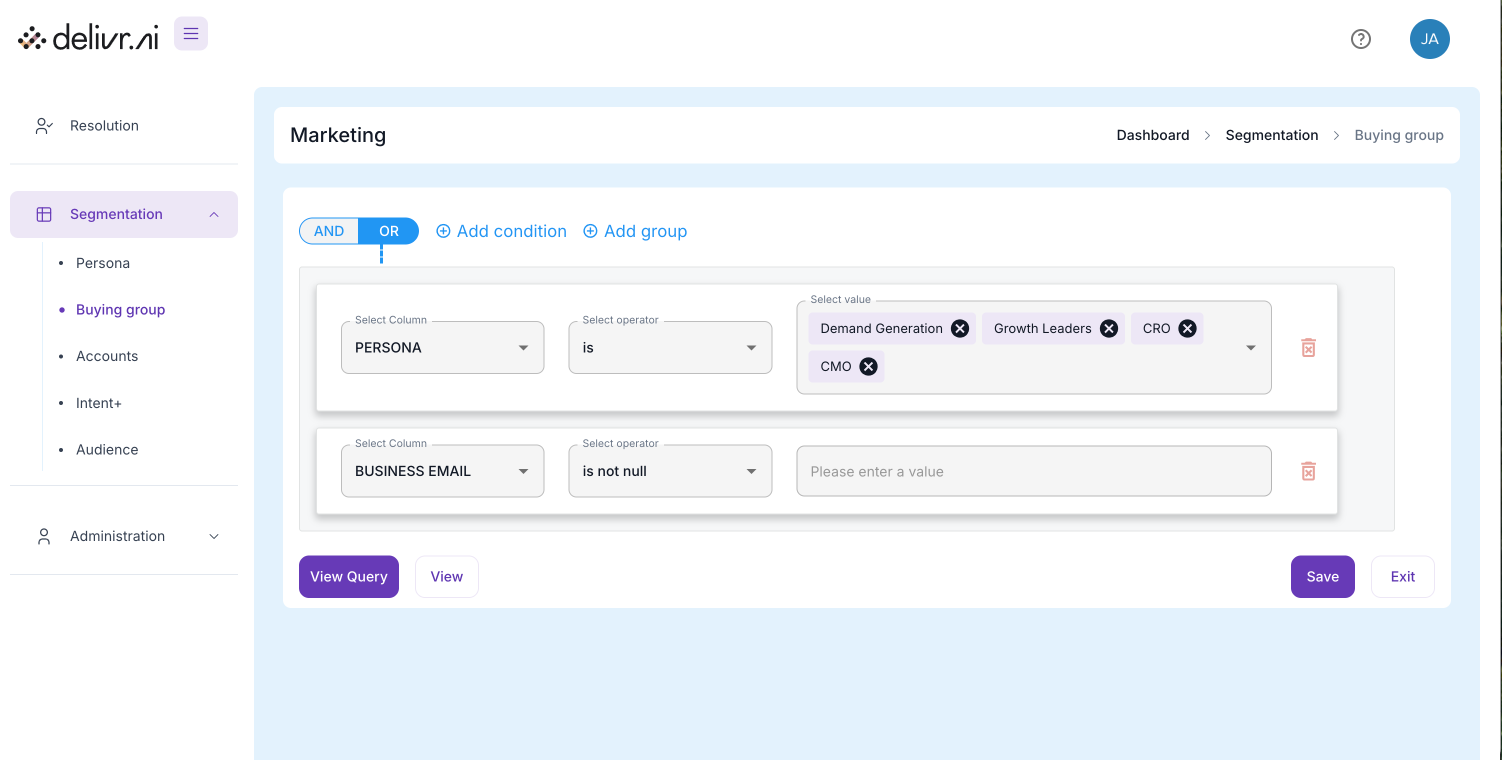
In the left navigation panel, click Segmentation.
Click Buying group in the submenu.
This opens the buying group builder interface where you define which contacts or personas belong to this group.
Step 2: Name Your Buying Group
At the top, enter a descriptive name (your example uses “Marketing”).
Best practice: Use a name that reflects the function of the group, e.g., “Marketing Leadership,” “Security Decision Makers,” or “Finance Stakeholders.”
🧱 Step 3: Add Conditions
Conditions define which contacts should be included in the buying group.
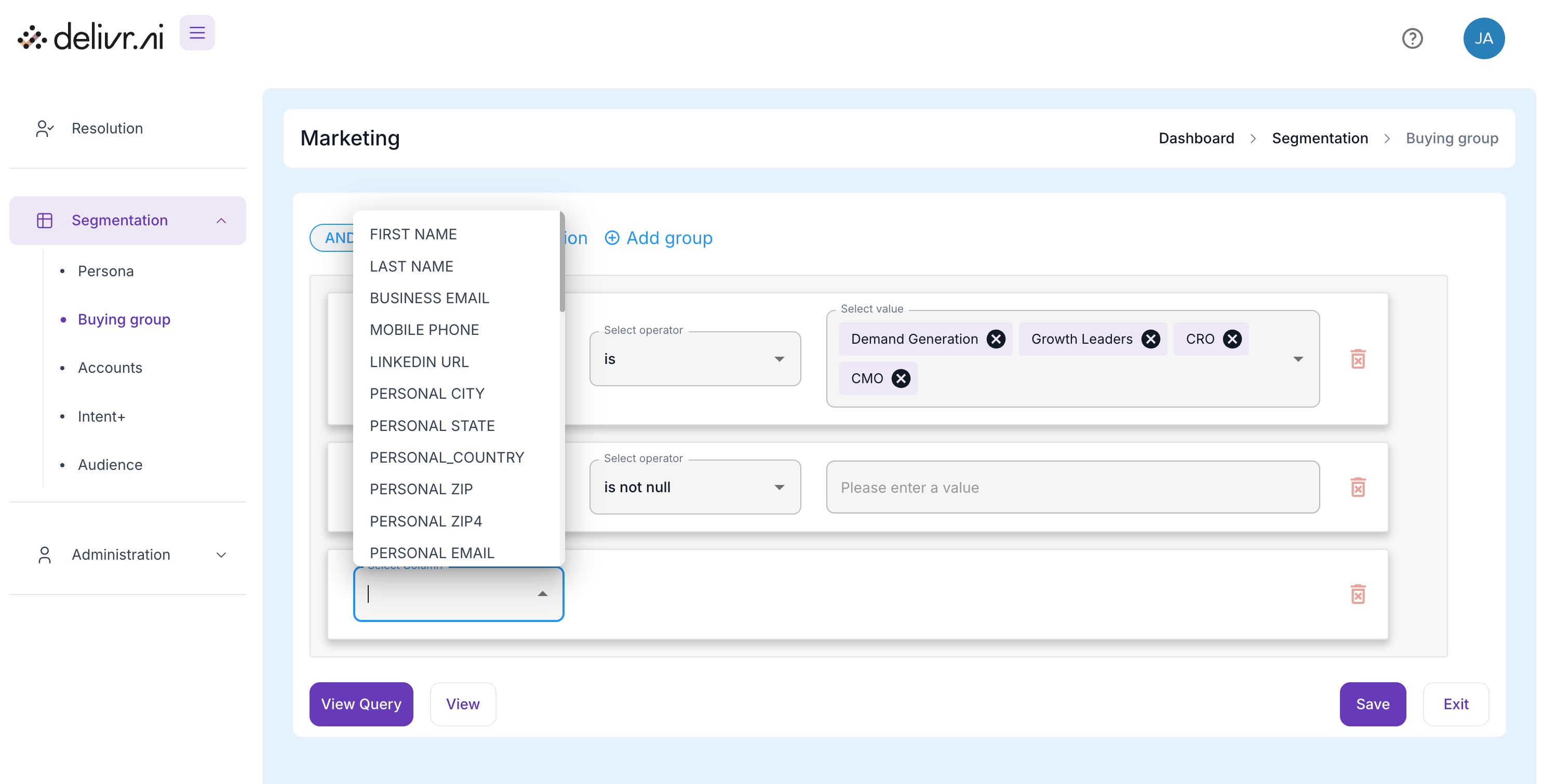
Select Column
What it does: Lets you choose the data field to filter by. Options include:
BUSINESS EMAIL
LINKEDIN URL
PERSONAL STATE / COUNTRY / ZIP
Validation status fields (e.g., Business Email Validation Status)
Select Operator
What it does: Sets the logic type. Examples:
is — matches exactly to a selected value
is not null — ensures the field is populated
equals / contains — filters based on matching text or partial match
Select Value
What it does: Lets you pick or type in which values you want to match.
In the screenshot: selecting Demand Generation, Growth Leaders, CRO, CMO under the
PERSONAcolumn.
➕ Step 4: Add More Conditions or Groups
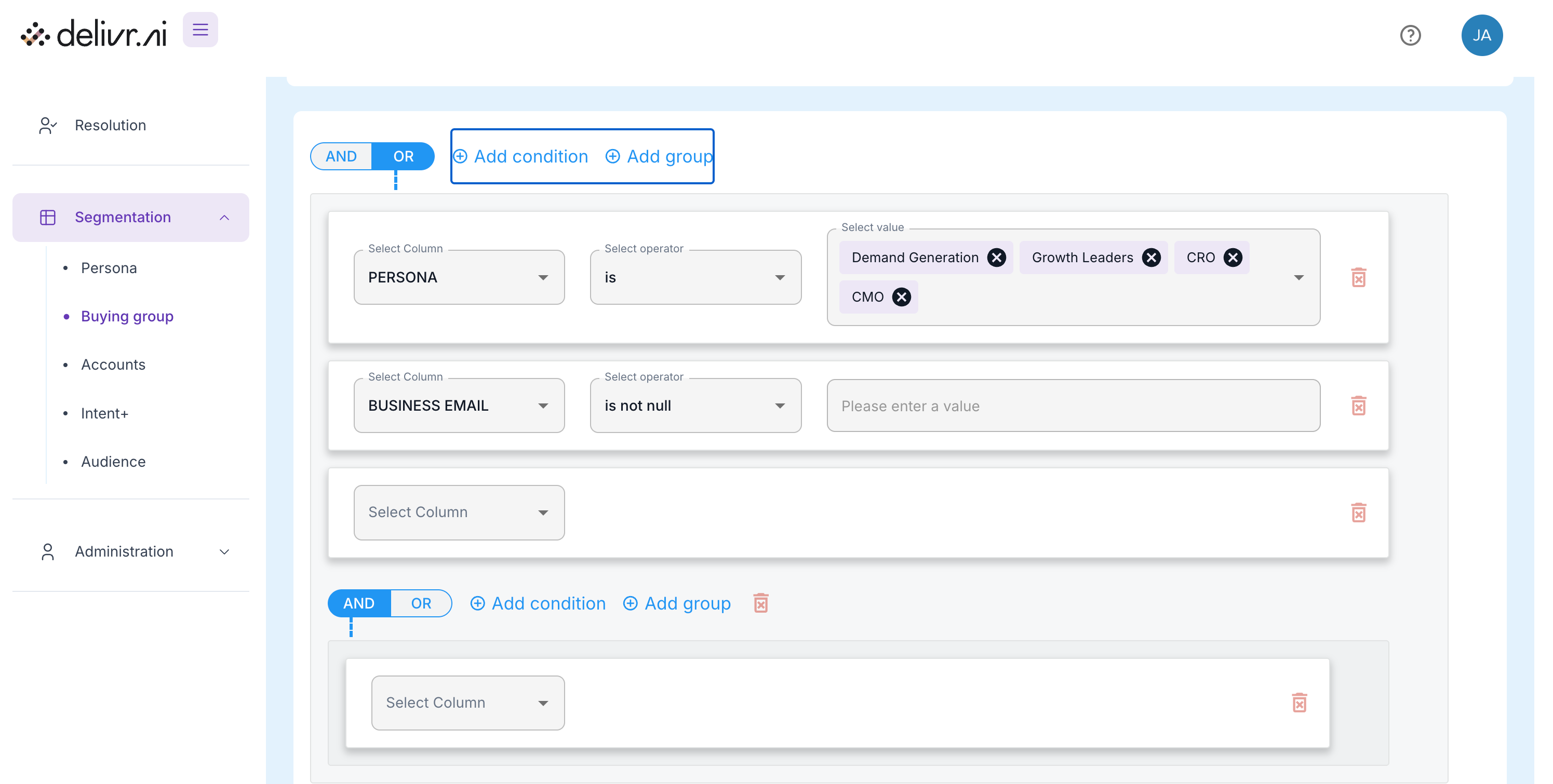
+ Add condition
Function: Adds another filter row in the same group.
Example: You could add
BUSINESS EMAIL is not nullso the group includes only contacts with a valid email address.
+ Add group
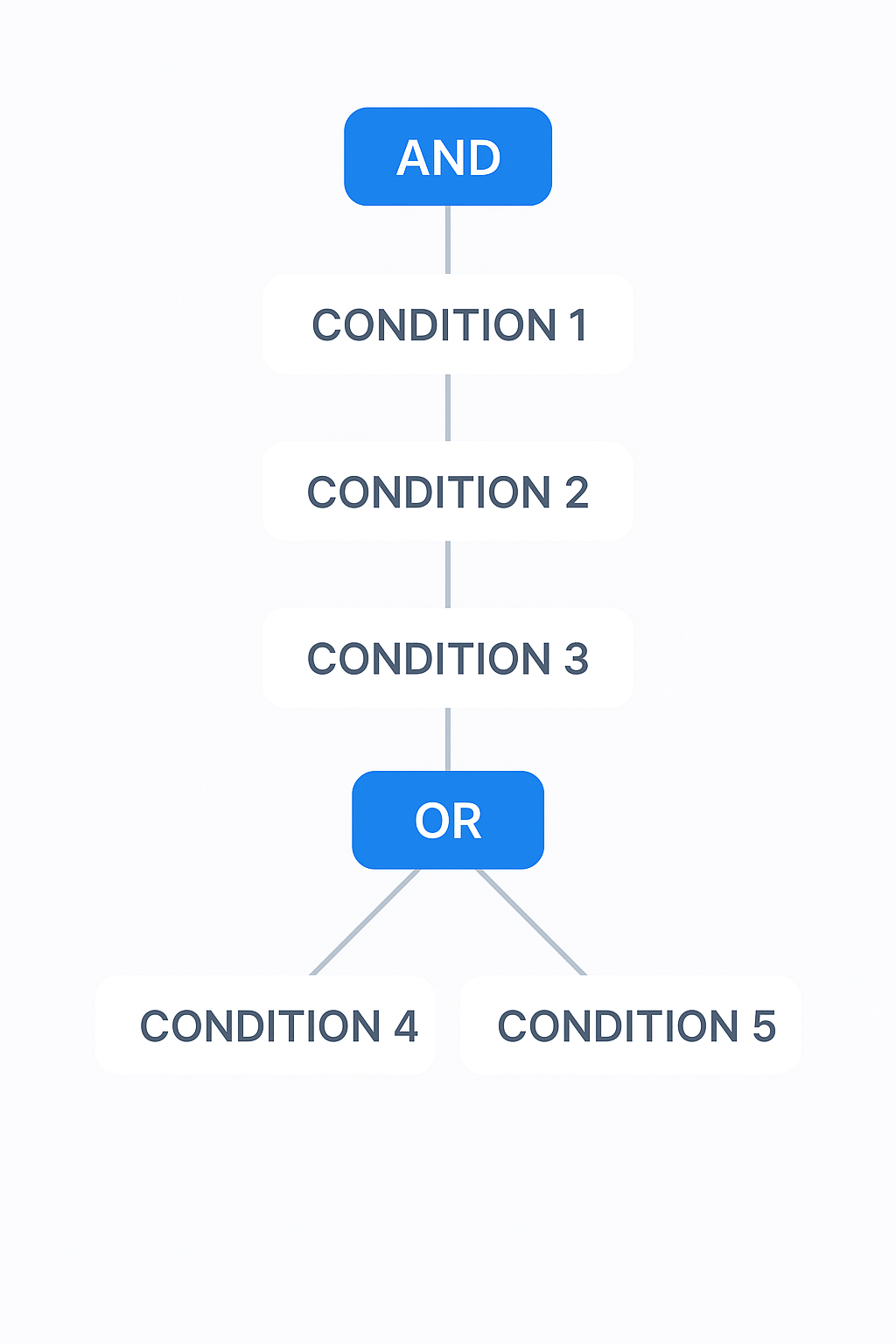
Function: Creates a new logical group (nested AND/OR logic).
Useful for combining multiple conditions such as:
Group 1: Persona is CMO OR CRO
Group 2: Country is United States AND Email is not null
⚙️ Step 5: Choose AND / OR Logic
At the top of each block, toggle between AND and OR:
AND: All conditions must be true for a contact to be included.
OR: Any one of the conditions being true is enough.
Example:
AND → Include only people who are CMOs and have a valid email address.
OR → Include anyone who is either CMO or CRO.
👀 Step 6: View or Test Your Group
At the bottom, you have two key buttons:
View Query:
Opens a preview of the underlying query logic so you can confirm your setup.
View:
Displays a preview of contacts that match your criteria.
Great for validating that you are including the right people before saving.
Step 7: Save or Exit
Save: Commits the buying group to your database so it can be reused in campaigns, reporting, and targeting.
Exit: Closes the builder without saving changes — useful if you want to discard or start over.
🗝 Summary of Every Button / Control
Was this helpful?