How do I create a persona?
Here’s a clear step-by-step guide to creating a persona
Step 1: Navigate to the Persona Builder
In the left-hand navigation panel, click Segmentation.
From the dropdown, click Persona.
This opens the persona builder screen where you can define conditions to describe your ideal persona.
Step 2: Name Your Persona
At the top of the page, you’ll see a name field (Ex. "C-level executives" or “Directors of Security”).
Best practice: Use a clear, descriptive name so teammates understand what this persona represents.
Step 3: Add Conditions
This is the core of persona building — defining which records match this persona.
➕ Add Condition
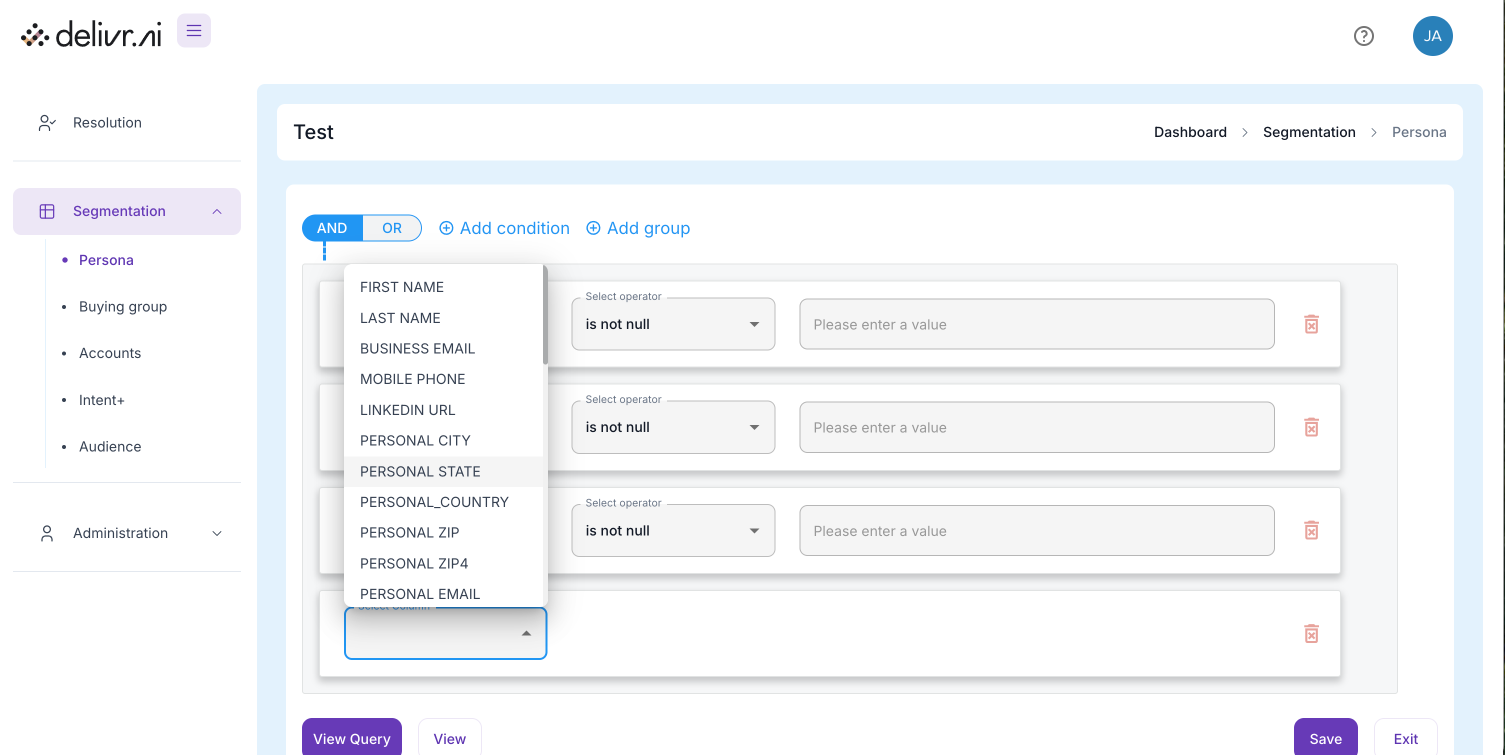
What it does: Adds a new rule row where you can select:
Column (Field): Dropdown lets you choose data points like
FIRST NAME,BUSINESS EMAIL,LINKEDIN URL,PERSONAL STATE, etc.Operator: Dropdown lets you choose logic like
is not null,equals,contains,starts with, etc.Value: If the operator needs input (like equals), you enter it here.
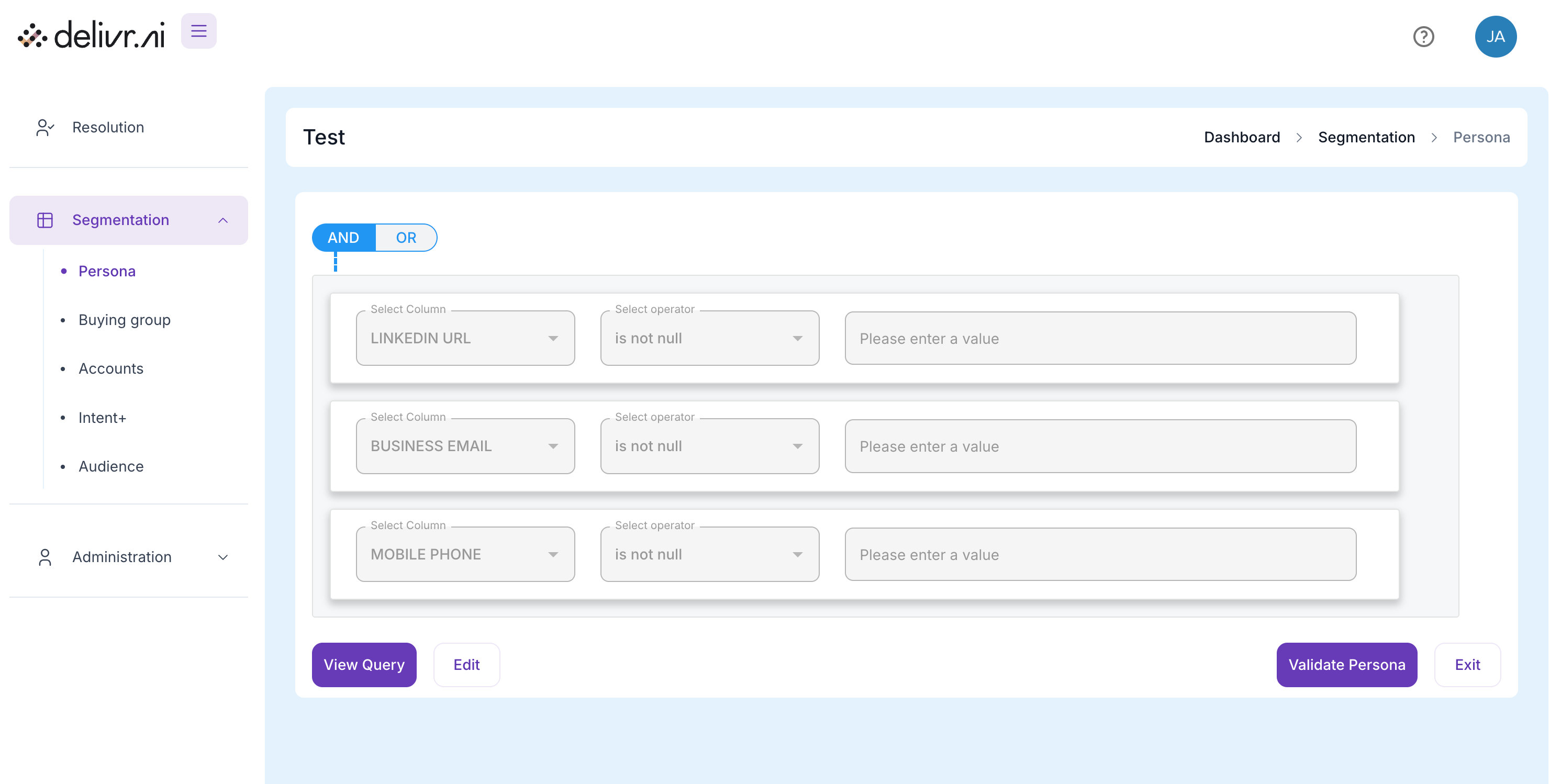
Example:
BUSINESS EMAILis not nullPERSONAL_STATEequalsColorado
This ensures the persona includes only people with those attributes.
Step 4: Add Groups (Advanced Logic)
➕ Add Group
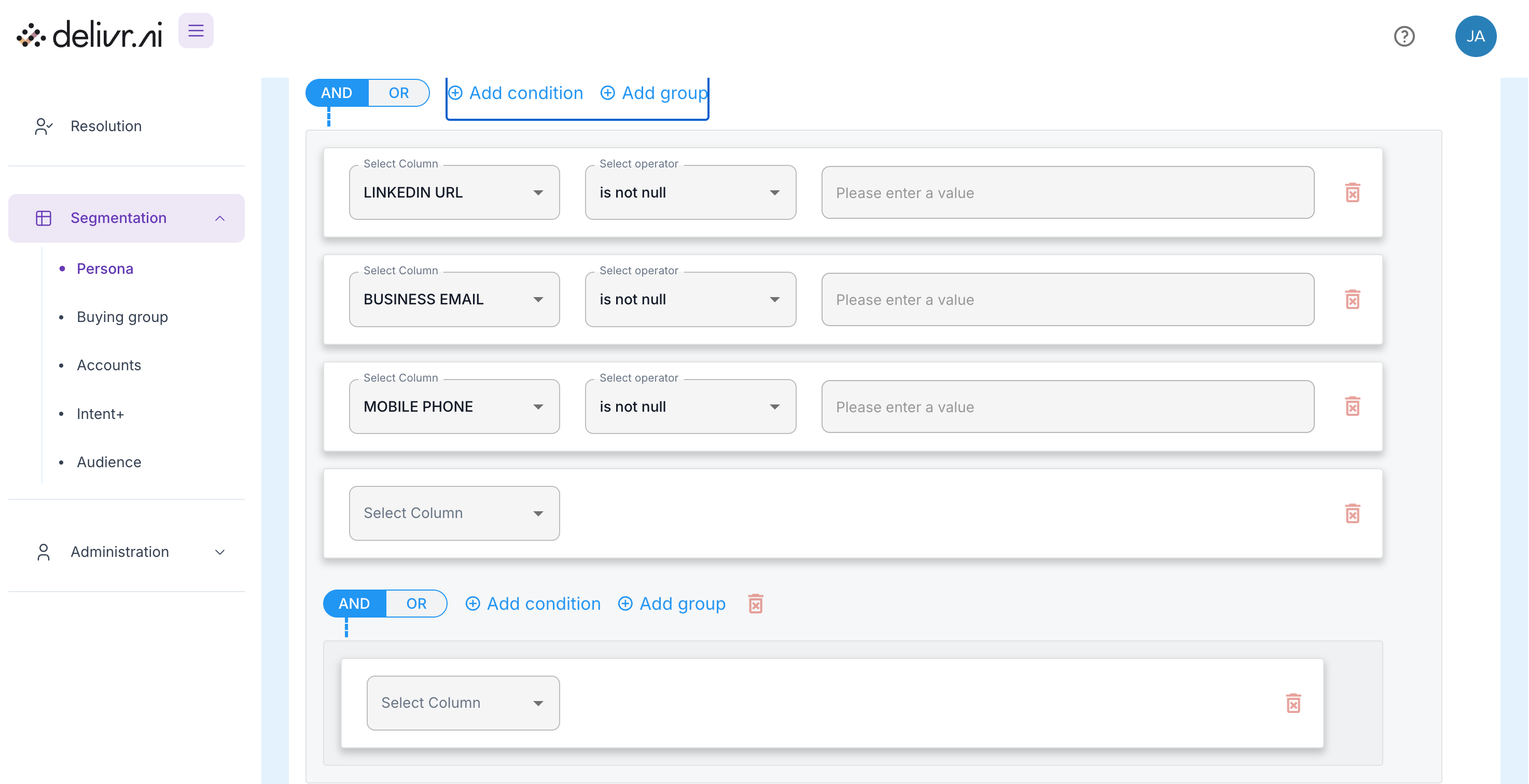
What it does: Creates a nested group of conditions.
Useful when you need complex logic (e.g., people in State = CO OR State = TX, but must also have a business email).
Groups can contain their own AND/OR logic separate from the main persona.
Step 5: Choose AND / OR Logic
At the top of each block, you’ll see AND and OR toggles.
AND (default): All conditions in this block must be true for someone to match.
Example: LinkedIn URL AND Business Email AND Mobile Phone must all exist.OR: Any one of the conditions being true is enough.
Example: LinkedIn URL OR Business Email — match if they have either.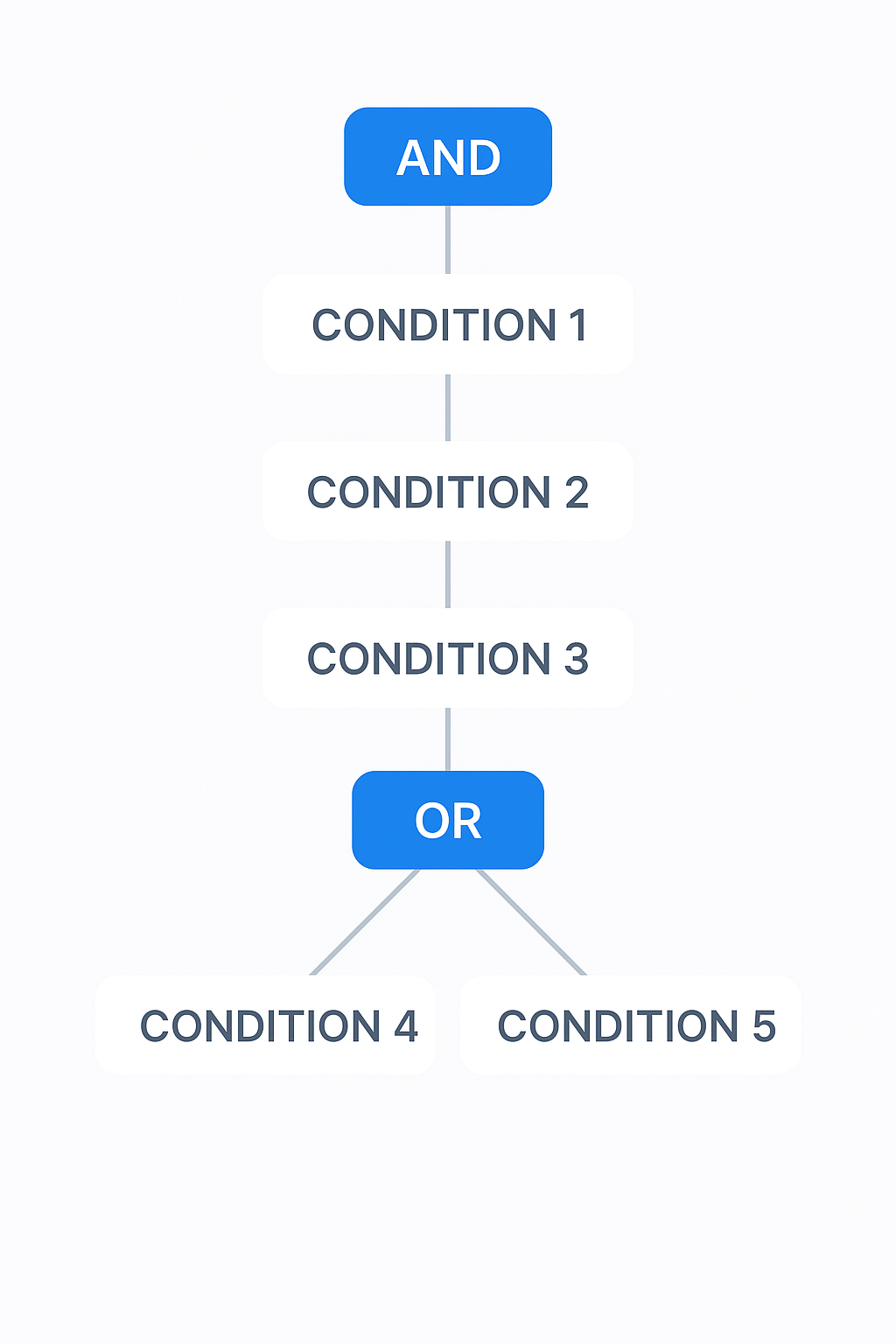
You can mix AND/OR between groups for more sophisticated rules.
Step 6: View or Validate Your Persona
At the bottom right you have two key buttons:
View Query:
Shows the underlying SQL query logic that will run, so you can confirm it’s structured as expected.Validate Persona:
Runs the logic against your dataset and shows how many records match.Useful to test whether your persona is too broad or too narrow before saving.
Step 7: Save or Edit and Iterate
Save: Commits your persona so it can be reused in audiences
Exit: Leaves the builder without saving changes (good if you’re just testing or want to discard).
🗝 Summary of Every Button / Control
Was this helpful?