Audience Export to Email CSV Link
Prerequisites
You’re an Admin in Delivr.ai.
You have an Audience ready to export.
You know the recipient email address that should receive the CSV.
Part 1 — Connect & Validate the Email Address (one-time)
In the left nav, go to Administration → Delivr Connections.
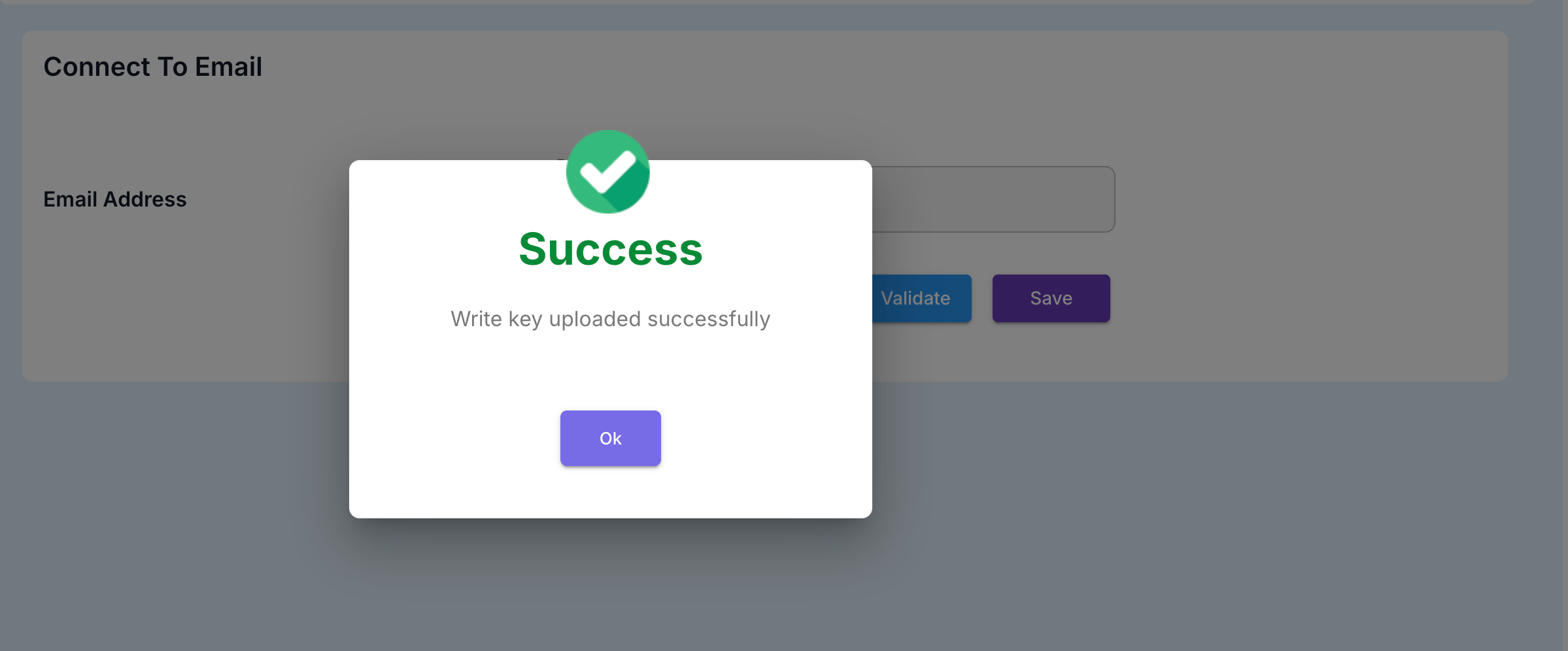
You’ll see “Connect To Email” with an Email Address field and a Validate button (Screenshot 2).Enter the recipient email address.
Click Validate.
If validation succeeds, the Save button becomes enabled.
Click Save to store the connection.
Tip: If you plan to send to multiple recipients, use a distribution list/alias you control.
Part 2 — Create the Email Export Configuration
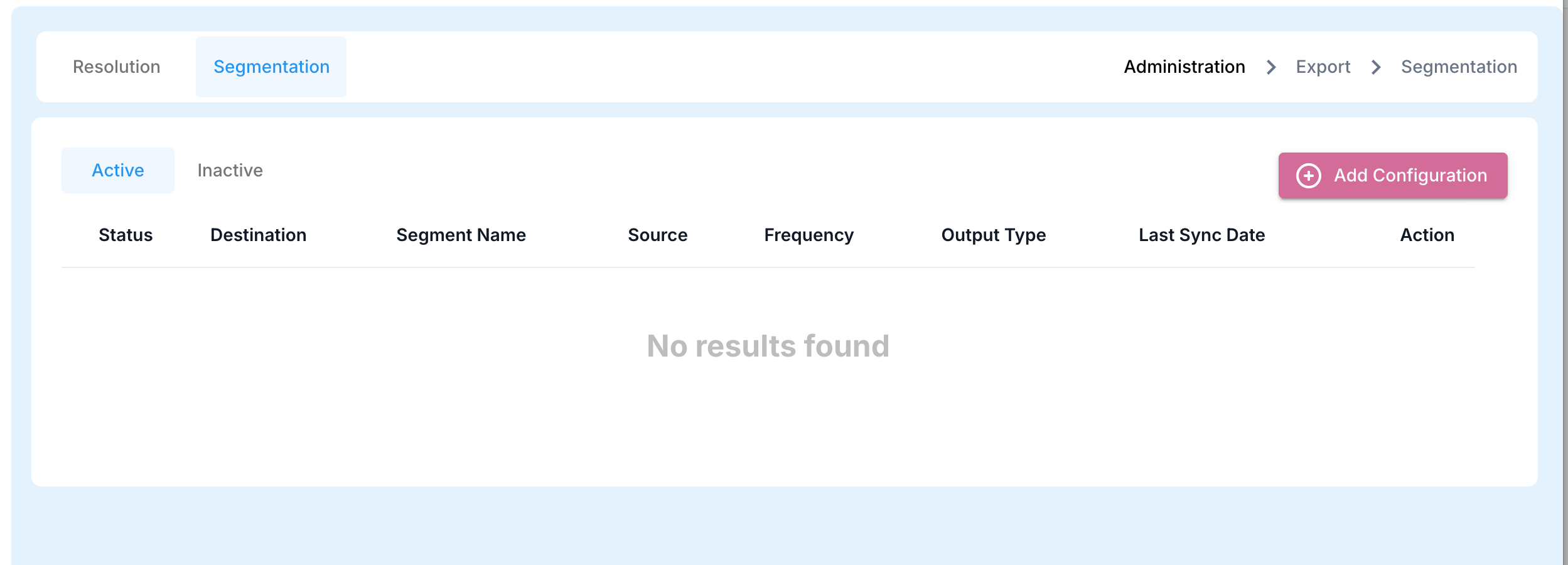
Go to Administration → Active Exports and click Add Configuration (top-right).
You’ll see an “Add/Update Configuration” modal
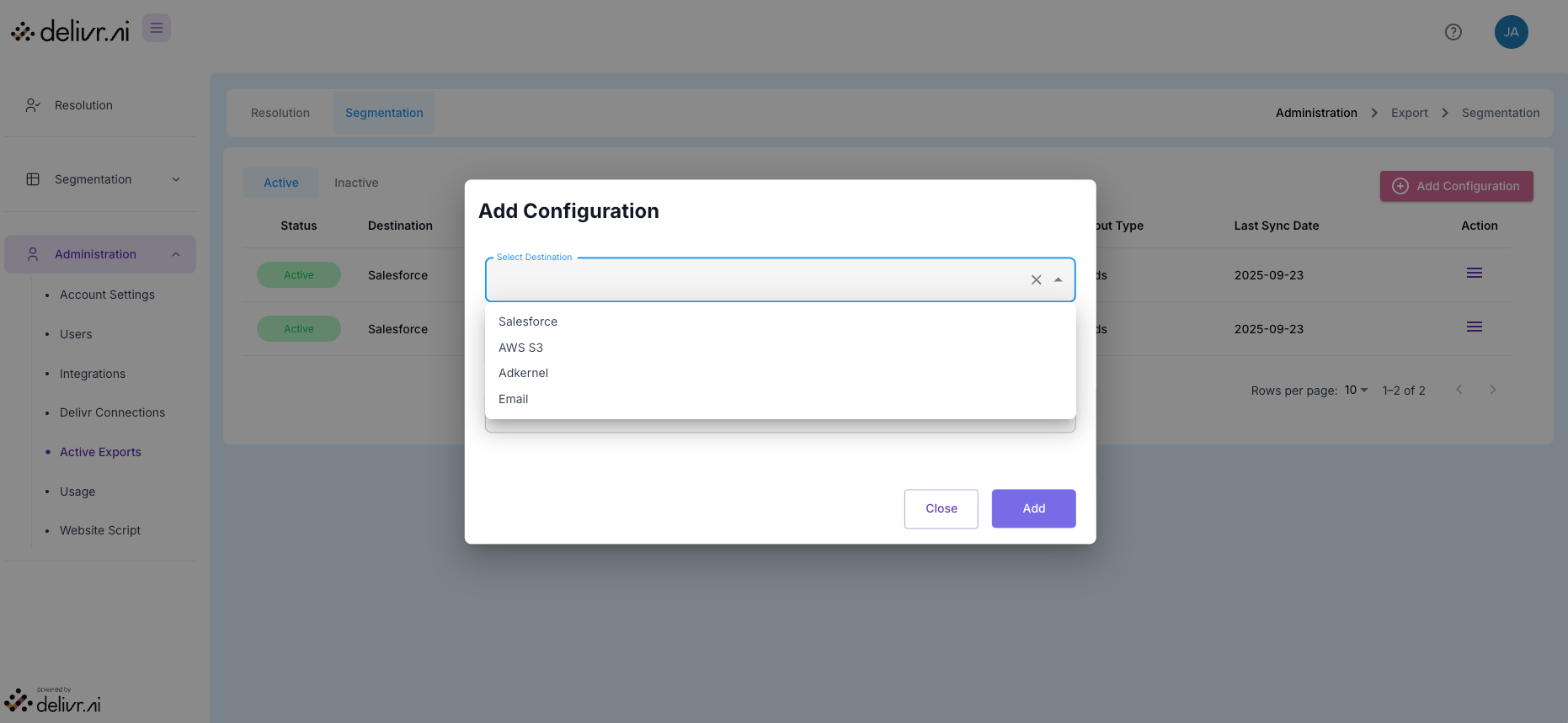
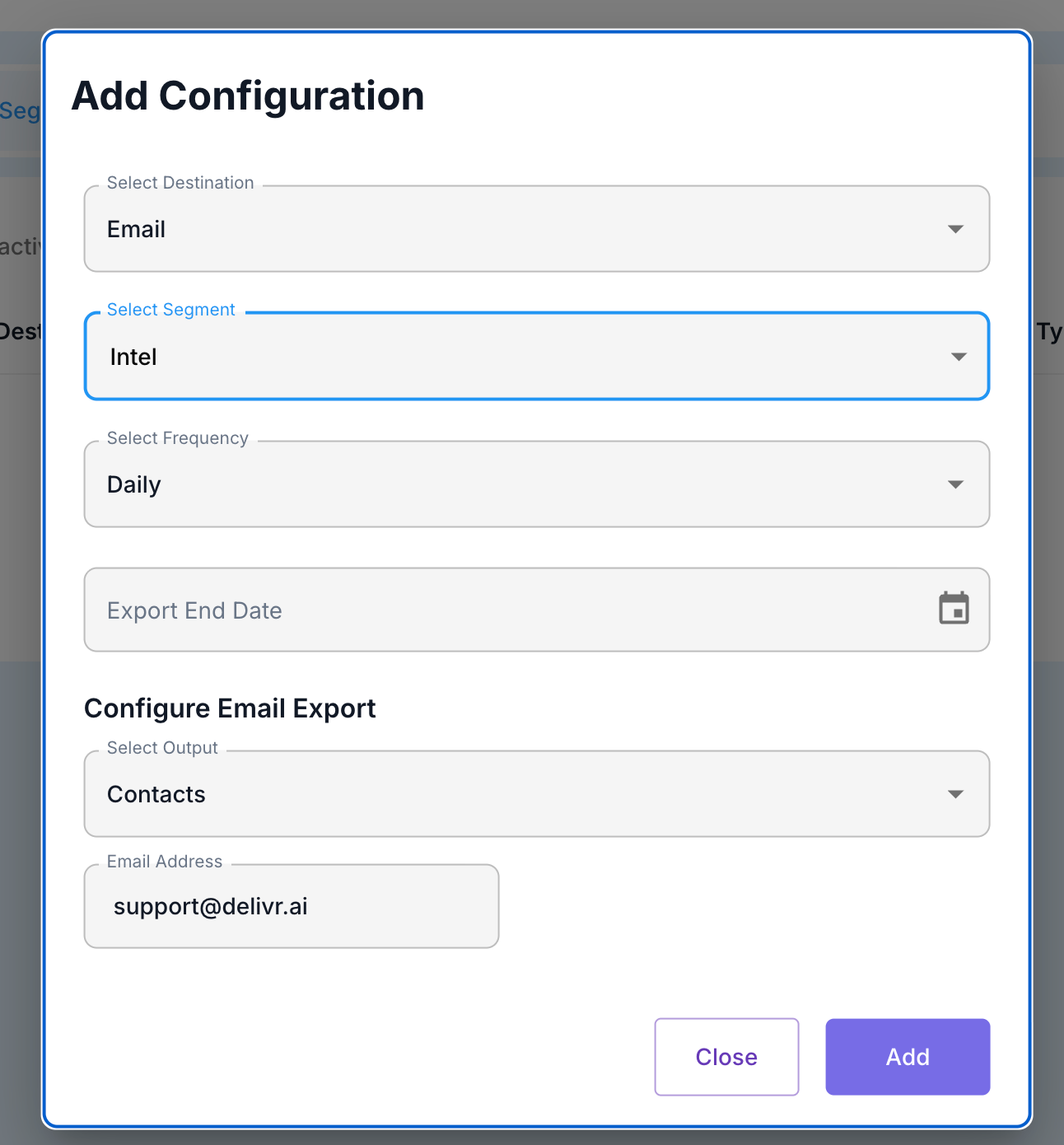
Select Destination: choose Email.
Select Segment: choose the audience you want exported.
Example shown: “TTD Agency All w/ Intent.”Select Frequency: pick when the CSV should be sent.
One-time/Run now (if available)
Daily, Weekly, etc.
(Optional) Export End Date: set a date if you want the export to stop automatically.
Under Configure Email Export:
Select Output: choose the dataset to export (contacts or accounts)
Email Address: pick the validated address from Part 1 (it will auto-populate once validated).
Click Add (or Update) to save and activate.
Part 3 — Verify It’s Active
Back on Active Exports, confirm the new row shows Status: Active and that Last Sync Date appears after the first run (Screenshot 3 shows examples).
Use the Action menu (≡) to edit, pause, or delete the configuration at any time.
What Arrives in the Email
You’ll receive an email at the validated address with a CSV attachment (or link, per org settings).
Columns reflect the Output you chose (e.g., Contacts vs. Leads) and your account’s available attributes. Typical fields include person/company identifiers (e.g., name, email, domain), segment name, and timestamps.
File naming generally includes the segment name and date for easy tracking.
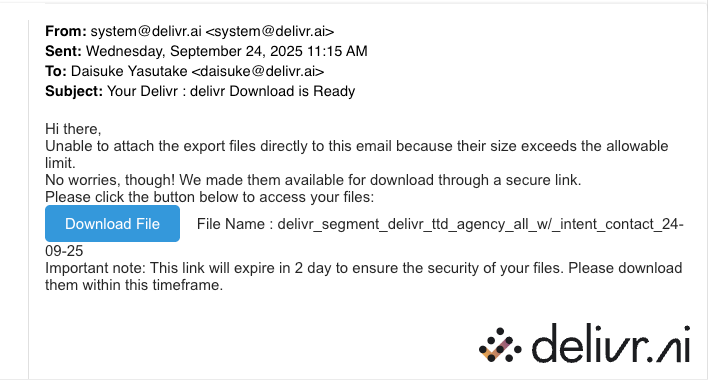
Tip: Very large audiences can create large files. If you expect extremely large exports, consider S3 as the destination for reliability and size limits, and keep Email for lighter, shareable drops.
Troubleshooting
Didn’t receive the email?
Check spam/junk and allowlist your Delivr.ai sender.
Verify the address is validated & saved (Part 1).
Make sure the segment is not empty on the run date/time.
“Save” is disabled on the Connections page
Click Validate first; Save only enables after a successful validation.
Wrong audience delivered
Edit the export (Active Exports → Action menu) and confirm the Segment and Output settings.
Need to stop the exports
Set an Export End Date or Pause/Delete via the Action menu.
Was this helpful?